AG Grid 35 introduces spreadsheet-style formulas in cells
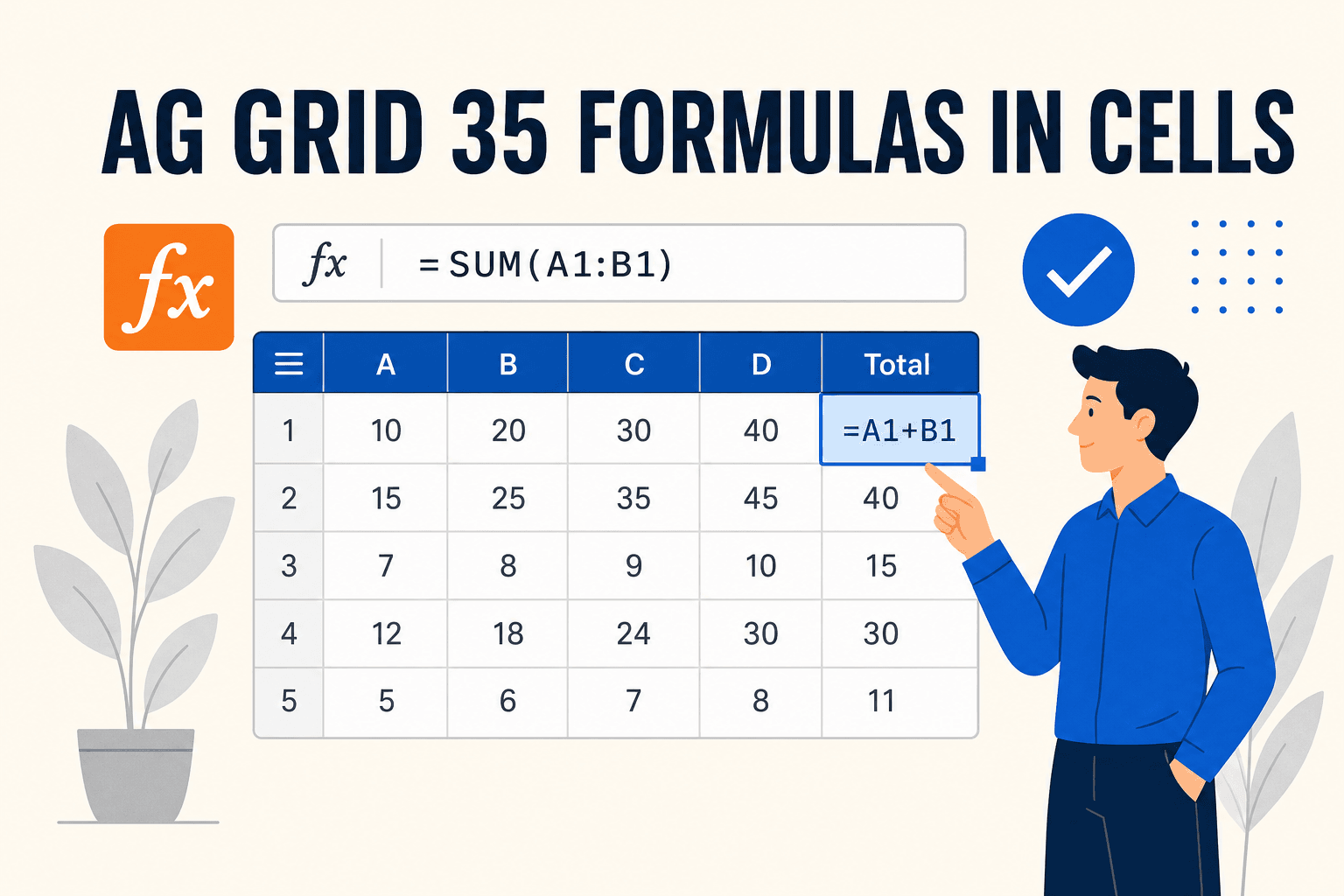
AG Grid 35 adds in-cell formulas — Excel-like calculations that reference other cells, functions, and operators. We break down how it works and when it’s useful.
AG Grid 35 introduces spreadsheet-style formulas in cells#
AG Grid 35, released in December 2025, adds one of the most requested capabilities for data-heavy grids: formulas. Users can type calculations directly into cells, reference other cells, use built-in functions and operators, and define custom functions — similar to Excel or Google Sheets, but inside your DataGrid. In this article we look at what’s in the box, how to enable it, and when it makes sense.
TL;DR
AG Grid 35’s Formulas feature lets users create dynamic calculations in cells: cell references (e.g. , ), functions, and operators. You enable it per column with and optionally add custom functions via . It’s a strong fit for dashboards, financial tools, and any grid where end users need to compute values without going back to the dev team.
A1B2:C5allowFormula: trueformulaFuncsWhat AG Grid 35 formulas offer#
Formulas in AG Grid work like spreadsheet formulas:
- Cell references — Reference other cells (e.g. ,
A1) or ranges. The grid resolves them and updates when source data changes.B2 - Functions — Use built-in functions for math, logic, text, and more. The Formulas docs list what’s available.
- Operators — Standard arithmetic and comparison operators for building expressions.
- Constants — Use literal values inside formulas.
Users type the formula into the cell (e.g. or ). The grid evaluates it and shows the result; when referenced cells change, the formula cell updates. That gives end users a way to add calculations and explore data without asking for new columns or backend changes.
=A1+B1=SUM(B2:B10)How to enable formulas#
You enable formulas per column and ensure the grid can identify rows for references:
-
Row identity — Implementso the grid can track rows when formulas reference them.
getRowId -
Allow formulas on columns — Seton the column definitions where users may enter formulas.
allowFormula: true
const getRowId = (params) => String(params.data.rid);

const columnDefs = [
  { field: 'subtotal', allowFormula: true },
  { field: 'tax', allowFormula: true },
  // ... other columns
];
COPY
- Optional: custom functions — If the built-in set isn’t enough, you can register custom functions via the grid option so users can call them from cells.
formulaFuncs
Full details and options (e.g. custom functions, parsing) are in the official Formulas documentation.
When formulas in a DataGrid make sense#
Formulas are useful when:
- End users need ad-hoc calculations — Analysts or power users want to add totals, ratios, or derived columns without a deploy.
- You’re building a spreadsheet-like experience — Budgets, forecasts, pricing tools, or reporting UIs where cell-to-cell references are expected.
- You want to reduce “add a column” requests — Let users define calculations in the grid instead of asking the dev team for new backend or column logic.
They’re less critical when:
- All values are supplied by the server or computed in code (e.g. value getters / renderers).
- The grid is read-only or very simple (no need for in-cell expression logic).
How this fits in the DataGrid landscape#
In-cell formulas are still uncommon in React/JS DataGrids. Many grids offer value getters, aggregations, or computed columns defined in code, but few let end users type Excel-style expressions directly in cells. AG Grid 35’s formulas bring that capability into the grid, which aligns with their focus on enterprise and spreadsheet-like use cases.
If you’re comparing grids for a project that needs user-defined calculations, it’s worth checking whether the grid supports formulas, value getters, or both — and whether that’s in the core or an enterprise tier. For a broader comparison of popular options, see AG Grid vs Infinite Table vs MUI X DataGrid vs TanStack Table (2025) and Which is the best datagrid?.
Other highlights in AG Grid 35#
Besides formulas, AG Grid 35 ships with:
- Row group dragging — Move rows within or across groups with drag-and-drop; the grid can update data accordingly (docs).
- Absolute sorting — Sort numeric columns by magnitude (e.g. by deviation size) regardless of sign (docs).
- Column selection — Select an entire column from the header (e.g. for charts or export) (docs).
- Filtering and export overlays — Customisable overlays for long-running filter or export operations (docs).
For the full list of changes and upgrade notes, see the AG Grid 35 release notes and changelog.
Summary#
AG Grid 35’s formulas feature brings spreadsheet-style calculations into the grid: users can reference cells, use built-in and custom functions, and build expressions that update when data changes. It’s a good fit for dashboards, financial tools, and any app where end users need to compute values without code changes. If you’re evaluating grids for that kind of workload, formulas are a feature worth testing in AG Grid 35.
For more content like this, follow us on at @thedatagrid